
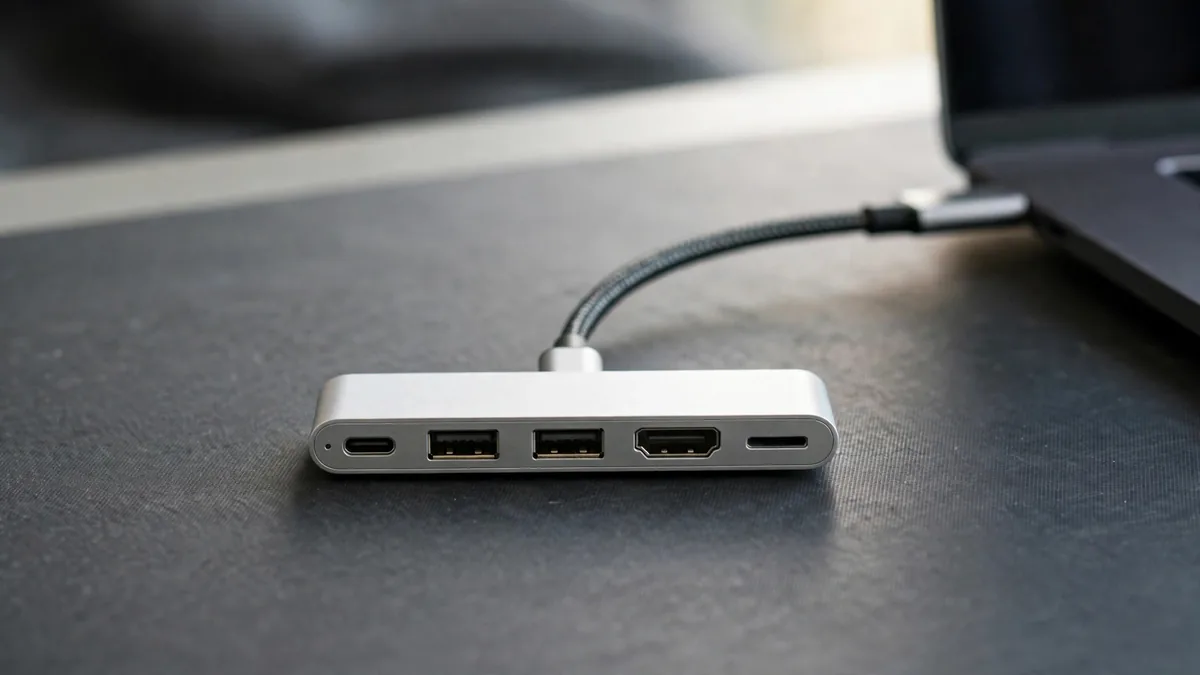
A USB-C hub for MacBook owners usually starts as a quick buy: you need HDMI for a meeting, a USB-A port for a flash drive, or an SD slot for camera cards. Then it turns into a daily part of your desk, carrying power, a monitor and a keyboard through one plug. That is where the cheap hub that looked fine at the counter starts dropping the display, running hot or charging slowly.
Whether you call it a dongle, an adapter or a USB C hub for MacBook ports, the right choice depends on the Mac you actually have. The two things most buyers get wrong are external display limits on MacBook Air models and how much power a hub passes through. Get those right and almost any decent hub will serve you well.
Start with the ports your MacBook already has
Before buying anything, look at the sides of your Mac.
- MacBook Air M1: two Thunderbolt / USB 4 ports and no MagSafe. One port goes to charging, so a hub matters more here.
- MacBook Air M2, M3 and M4: MagSafe 3 for charging plus two Thunderbolt / USB 4 ports. With MagSafe doing the charging, both USB-C ports are free.
- MacBook Pro 14-inch and 16-inch (M1 Pro onward, including M4 and M5 models): Thunderbolt ports, HDMI, an SDXC card slot and MagSafe 3. Many Pro owners need only a small USB-A adapter, not a full hub.
If you have a 14-inch MacBook Pro, the built-in HDMI and card slot already cover what most hubs add. A hub mainly helps with USB-A peripherals and wired Ethernet.
External display limits on MacBook Air
This is the biggest source of disappointment. A hub with two HDMI ports does not give every Mac two screens.
- MacBook Air M1 and M2, and the 13-inch MacBook Pro M1 and M2: officially support one external display. A dual-HDMI hub will usually show the same picture on both monitors.
- MacBook Air M3: supports up to two external displays, but only with the laptop lid closed.
- MacBook Air M4: supports up to two external displays with the lid open.
- MacBook Pro with M4, M4 Pro, M4 Max or M5: supports at least two external displays, with more on higher chips.
Confirm the exact figure on Apple's tech specs page for your model, which lists display support by chip and resolution. macOS does not split one USB-C connection into two independent screens the way some Windows laptops do, so even on a Mac that supports two displays, a single-cable dual-HDMI hub may mirror. The reliable way to run two MacBook external monitor setups is one display per Thunderbolt port, or a Thunderbolt dock that the manufacturer lists as Mac-compatible.
HDMI and refresh rate
A basic MacBook HDMI adapter often supports 4K only at 30Hz, which makes the mouse feel laggy on a large monitor. If you use a 4K screen for work, look for HDMI 2.0 or later support at 60Hz. For 1080p and 1440p monitors, most decent hubs are fine.
Check the cable as well. An old HDMI cable from a cable box may not carry a 4K 60Hz signal reliably. If the screen flickers or goes black for a second, try a different cable before blaming the hub. For an iPad as an extra screen instead, see our guide to using an iPad as a second screen for Mac.
Pass-through charging, explained
Most hubs have a USB-C port marked PD for power delivery. You plug your charger into the hub, and the hub passes power to the Mac. The hub keeps some of that power for itself and for anything connected to it, so the Mac receives less than the adapter's full rating.
What that means in practice:
- Use a charger with enough headroom. A small adapter feeding a hub, a drive and a monitor connection may charge the Mac very slowly, or not at all while it is busy.
- On an M2, M3 or M4 Air, charge through MagSafe and use the hub only for data and display. That takes heat and load off the hub.
- If the Mac shows "not charging" while plugged in through a hub, test the charger directly on the laptop first. Our MacBook charger guide explains wattage by model.
During load-shedding, a hub on a cheap charger is a weak point. Protect the adapter with a proper surge protector, as we explain in our guide on how to protect electronics from power surges.
Signs of a cheap hub to avoid
The market is full of hubs that look the same but behave very differently. Watch for these:
- No brand or model number, or a listing that claims impossible combinations like triple 4K displays on any MacBook.
- Extreme heat after ten minutes of use. Some warmth is normal; a hub too hot to hold is not.
- Displays that drop out when you plug in a USB drive or phone.
- Slow USB-A ports labelled as USB 3 but transferring at USB 2 speed. Copy a large file to test.
- A loose USB-C plug that wobbles in the port. Constant movement can damage the Mac's port over time.
- No mention of power delivery limits in the packaging or listing.
Ask the seller to let you test it with your own Mac, monitor and charger. Plug everything in, play a video on the external display, copy a file to a USB drive, and check that the Mac shows it is charging.
Matching the hub to your use
- Students and writers: a small hub with HDMI, one or two USB-A ports and pass-through charging covers lectures, presentations and a flash drive.
- Designers and editors: look for an SD card reader with fast speeds, 4K at 60Hz HDMI, and consider a Thunderbolt dock if you use fast external drives.
- Freelancers on video calls: add wired Ethernet. A cable to the router is often more stable than Wi-Fi when the house is busy or the inverter kicks in.
Buying apple accessories in Lahore
When you shop for Apple accessories in Lahore, bring your Mac or at least its exact model name. Hafeez Centre stalls and online listings often describe hubs by port count alone, which tells you nothing about display support or power delivery. Ask for the brand and model number so you can look up its specifications yourself.
Browse MacVault accessories and cables, or the Mac selection if you are still choosing a laptop. Message MacVault on WhatsApp with your Mac model to confirm which adapter suits your ports before you pay.
Frequently asked questions
Can a MacBook Air M1 run two monitors with a USB-C hub?
Officially no. The M1 Air supports one external display, so a dual-HDMI hub will normally mirror the same picture. DisplayLink hubs with a software driver can add a screen, but with trade-offs in performance.
Is it safe to charge my MacBook through a hub?
Yes, if the hub supports power delivery and your charger has enough wattage to cover the hub's own use. On MagSafe models it is better to charge through MagSafe and keep the hub for data and display.
Do I need a hub if I have a MacBook Pro 14-inch?
Often not. It already has HDMI, an SD card slot and Thunderbolt ports. A small USB-C to USB-A adapter usually covers older peripherals.
Why does my external monitor flicker through the hub?
Try a different HDMI cable first, then plug the monitor into the other Mac port. If it still flickers, the hub may not handle that resolution and refresh rate properly.
Business: MacVault
Price Range: Expected price ranges confirmed before purchase
Phone: +92 339 4004289
Description: Browse iPhones, MacBooks, iPads, Apple Watch, AirPods, and PS5 products from MacVault in Lahore with clear condition, warranty, and stock details.
+92 339 4004289 <contact@macvault.store>