
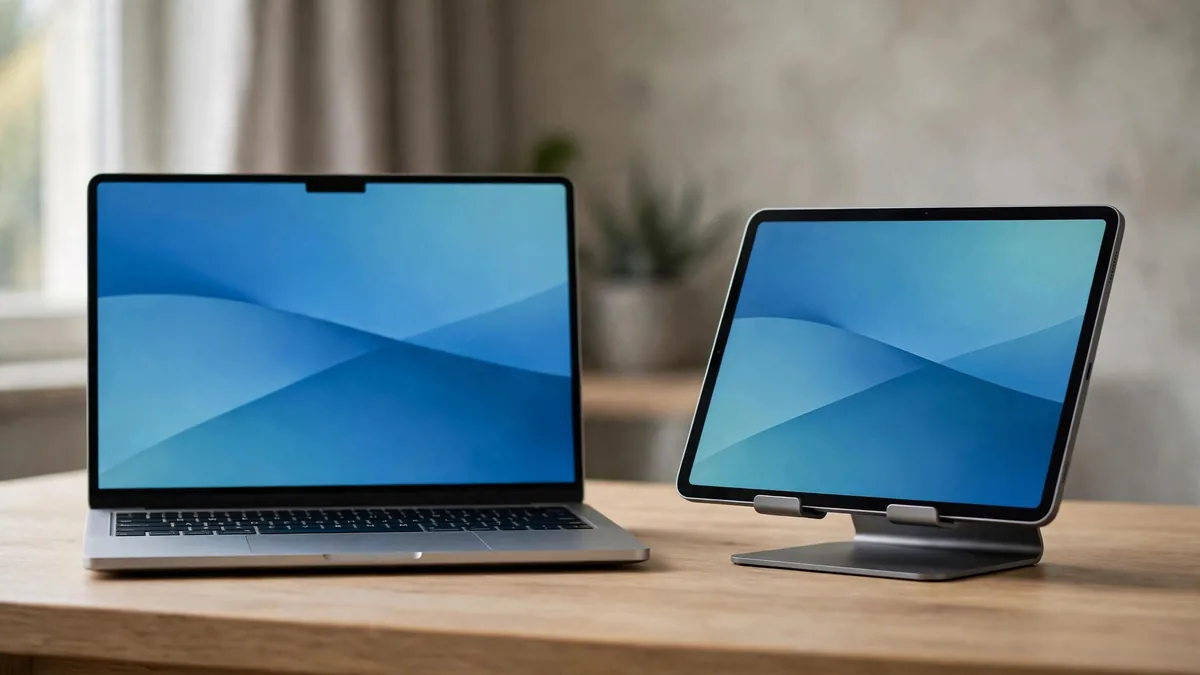
If you already own both devices, using an iPad as a second monitor for Mac costs nothing extra. Apple's built-in feature, Sidecar, turns the iPad into an extra display for your MacBook or desktop Mac, either over Wi-Fi or a cable. There is no app to buy and no hardware to add. Setting up an iPad as second monitor for Mac work takes a couple of minutes once you know where the options are.
For a student in a small hostel room or a freelancer working from a café table, that extra screen can hold lecture notes, a client brief or a reference image while the main work stays on the Mac. This guide explains how to check compatibility, set it up both ways, draw in Mac apps with Apple Pencil, and when Universal Control is the better choice.
Check that your Mac and iPad support Sidecar
Sidecar needs a Mac running macOS Catalina or later and an iPad running iPadOS 13 or later, but not every model on those versions qualifies. Apple keeps a list of supported Macs and iPads on its support site, so check your exact models there before planning around it. Most Apple silicon Macs and iPads from the last several years are included.
Both devices also need to:
- Be signed in to the same Apple Account, with two-factor authentication turned on.
- Have Wi-Fi, Bluetooth and Handoff turned on for wireless use.
- Be close together. Apple's guidance is within about 10 metres.
- Not be sharing an internet connection. If the iPad is sharing its cellular data or the Mac is sharing its connection, turn that off first.
If you are buying a used iPad specifically for this, confirm the model number in Settings, General, About and check it against Apple's list. Also confirm the previous owner's Apple Account has been removed, or you will not be able to sign in with yours.
Setting up Sidecar wirelessly or with a cable
On the Mac, open Control Centre, click Screen Mirroring, and choose your iPad from the list. You can also go to System Settings, Displays, click the add button and pick the iPad. The iPad screen becomes an extension of the Mac desktop. Drag windows across to it as you would with any external display.
Wireless is convenient, but it uses Wi-Fi and Bluetooth and can stutter in a crowded hostel or flat where many networks overlap. A USB-C cable between the two gives a steadier picture and also charges the iPad while you work, which helps on long study days. Older iPads with a Lightning port need a USB-C to Lightning cable for a modern MacBook. Spare cables are on the cables page.
Once connected, Sidecar adds a sidebar on the iPad with modifier keys such as Command and Shift, and an undo button. You can hide it in the Sidecar settings on the Mac if you want the full screen for windows. To stop, click the disconnect button in the sidebar or open Screen Mirroring again on the Mac.
Using Apple Pencil in Mac apps
This is where Sidecar becomes more than a spare screen. With a compatible Apple Pencil, you can draw, sign and mark up directly in Mac apps that support a graphics tablet. Pencil touches act as a precise pointer for clicking and dragging. In apps with stylus support, such as many design and illustration programs, pressure and drawing work as they do on a drawing tablet.
Practical uses:
- Signing PDFs in Preview on the Mac without printing anything.
- Annotating lecture slides or circuit diagrams while the original stays open on the main screen.
- Sketching rough layouts for a client and dropping them straight into a Mac design file.
Finger touch does not control the Mac in Sidecar beyond the sidebar and scrolling gestures. For precise input, use the Pencil. Check which Pencil works with your iPad on our Apple Pencil price guide before buying one.
Sidecar compared with Universal Control
Universal Control is a different feature that people often confuse with Sidecar. In Universal Control, the iPad stays an iPad. It runs its own apps, and you control it with the Mac's keyboard and trackpad by moving the pointer off the edge of the Mac screen. You can drag files between the two.
Sidecar makes the iPad a Mac display running Mac windows. Universal Control lets you use both devices side by side with one keyboard and trackpad.
Choose by task:
- Need more room for Mac apps, such as a spreadsheet on one screen and a report on the other? Use Sidecar.
- Want to keep notes in GoodNotes or Notability on the iPad while typing an assignment on the Mac? Use Universal Control.
- Want to draw in a Mac app with Pencil? Use Sidecar.
On the Mac, turn on Universal Control in System Settings, Displays, Advanced by allowing your pointer and keyboard to move between nearby Mac or iPad. On the iPad, look for Cursor and Keyboard under Settings, General, in the AirPlay and Continuity section. Exact menu names change between versions.
Layouts for students and freelancers
A few setups that work well with an iPad and MacBook for students and freelancers:
- Lecture and notes. Recorded lecture or slides on the iPad via Sidecar, notes document full screen on the Mac.
- Research and writing. Sources and PDFs on the iPad, the document you are writing on the Mac.
- Freelance design. Mac app's toolbars and layers panel moved to the iPad, main canvas on the Mac.
- Communication. WhatsApp Web, email or Slack on the iPad, so messages do not cover your work.
- Coding. Documentation or a terminal on the iPad, editor on the Mac.
Place the iPad on a stand at the same height as the MacBook screen to avoid neck strain over long sessions. If you are still choosing which of the two devices to buy first, our iPad vs MacBook for students guide covers that decision.
Frequently asked questions
Does Sidecar work without Wi-Fi?
Yes, if you connect the iPad and Mac with a USB cable. Both devices still need to be signed in to the same Apple Account. A cable is also the more stable option in places with crowded Wi-Fi.
Can I use an old iPad as a second screen for my Mac?
Only if Apple lists it as supported for Sidecar and it can run the required iPadOS version. Very old iPads are not supported. For those, third-party display apps exist, but check reviews and permissions before installing one.
Does Sidecar drain the iPad battery?
Wireless Sidecar keeps the screen on and uses Wi-Fi and Bluetooth, so the battery drops steadily. A USB-C cable to the Mac charges the iPad during use, which is better for long sessions.
Next step
Check both of your models against Apple's Sidecar list first. If you need an iPad that supports it, browse the iPad category and message MacVault on WhatsApp with the model you are considering so we can confirm today's price and send photos of the exact unit.
Business: MacVault
Price Range: Expected price ranges confirmed before purchase
Phone: +92 339 4004289
Description: Browse iPhones, MacBooks, iPads, Apple Watch, AirPods, and PS5 products from MacVault in Lahore with clear condition, warranty, and stock details.
+92 339 4004289 <contact@macvault.store>