
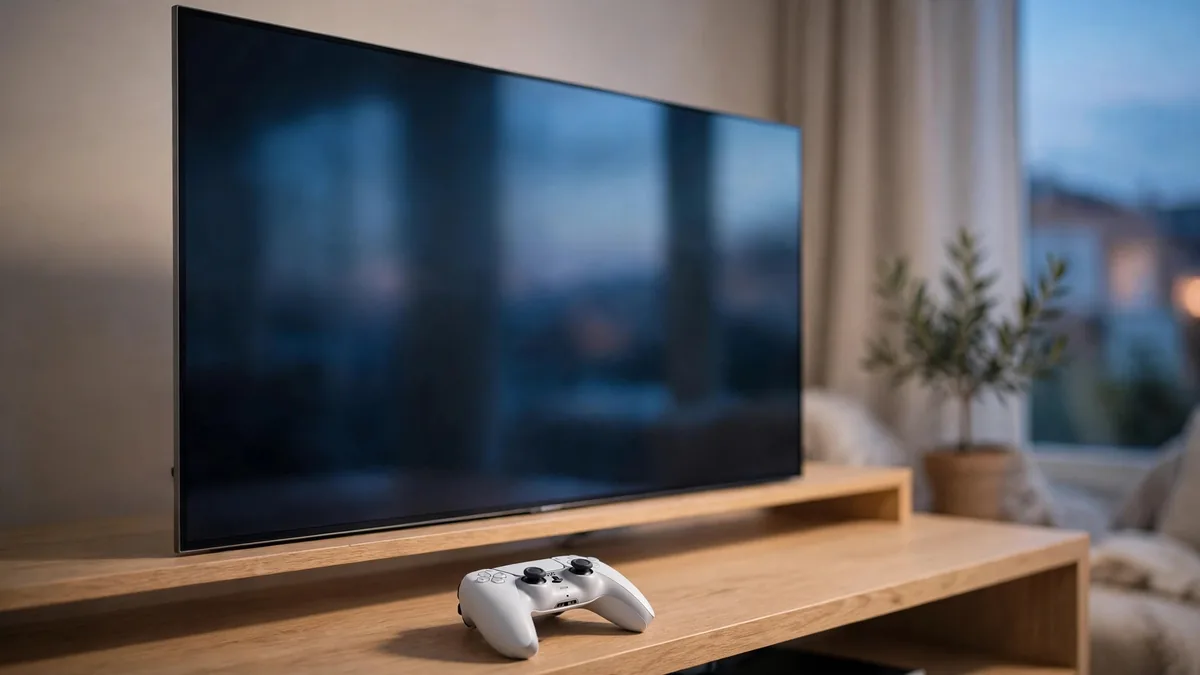
Plenty of PS5 owners in Lahore are playing on a good TV with the wrong settings. The console might be sending a 60Hz signal to a 120Hz panel, HDR might be washed out, or the TV might be adding processing that makes the controller feel slow. Getting your PS5 TV settings right takes about fifteen minutes and costs nothing.
Do the work in two places: first on the TV, then on the PS5. If the TV is not set up to accept the full signal, nothing you change on the console will help.
Start with the right HDMI port and cable
Look at the back or side of your TV. Many TVs have several HDMI inputs, but only some of them support the full HDMI 2.1 features the PS5 can use, such as 4K at 120Hz and variable refresh rate. The label next to the port may say 4K 120Hz, HDMI 2.1, or show a small game controller icon. If the ports are not labelled, check the TV manual or the manufacturer's spec sheet for your exact model number.
Use the HDMI cable that came with the PS5 if you still have it. A random older cable from a drawer may handle 4K at 60Hz and then fail at 120Hz, which shows up as flickering, a black screen or the console falling back to a lower mode. If you see a blank screen after changing ports, our PS5 no signal guide covers the safe-mode reset.
If you route the PS5 through a soundbar or AV receiver, that device also needs to pass through 4K 120Hz and HDR. If it cannot, connect the PS5 directly to the TV and send sound to the soundbar through the TV's eARC port instead.
Turn on the TV's full HDMI signal and game mode
Most TVs ship with HDMI ports in a compatibility mode that limits the signal. You need to switch on the enhanced format for the port your PS5 uses. Brands name it differently. You may see HDMI Enhanced Format, Input Signal Plus, HDMI UHD Color, HDMI 2.1 mode or similar. Turn it on for that one input.
Then switch the picture mode to Game. Game mode turns off most of the motion smoothing and image processing that adds delay between your button press and the screen. Many TVs also support Auto Low Latency Mode (ALLM), which lets the PS5 switch the TV into game mode automatically. Leave it on if your TV has it.
While you are in the TV menus, turn off motion smoothing, noise reduction and any "dynamic contrast" setting. These make games look artificial and can introduce lag.
PS5 video output settings to check
On the PS5, open Settings, then Screen and Video, then Video Output. These are the options that matter:
- Resolution: set it to Automatic so the console picks the highest mode your TV accepts.
- 4K Video Transfer Rate: leave it on Automatic. If you see sparkles or the picture drops out, try a lower value, then fix the cable.
- Enable 120 Hz Output: set it to Automatic. Without this, games that support 120Hz will still run at 60Hz.
- VRR: turn it on if your TV supports variable refresh rate. It smooths out frame rate dips in supported games.
- HDR: set it to On When Supported so HDR activates only for HDR content.
- Deep Color Output and RGB Range: leave these on Automatic unless you have a specific reason to change them.
The Video Output Information screen shows what the console is actually sending. Check it after changing anything. If it says 60Hz on a TV you believed was 120Hz, the port, the cable or the TV's enhanced format setting is the problem.
PS5 HDR settings: calibrate once, properly
The PS5 has a built-in HDR calibration under Screen and Video, then Video Output, then Adjust HDR. It shows a series of screens with a symbol on a patterned background. On each screen, move the slider until the symbol is barely visible, then stop. Do it with the TV already in Game mode and HDR active, because calibrating in a different picture mode gives you values that do not match how you actually play.
Some newer TVs offer their own HDR game calibration through HGIG or a similar mode. If yours does, enable it on the TV first and then run the PS5 calibration. Many games also have their own brightness and HDR sliders in their menus. Run those after the system calibration, using the game's own instructions.
If HDR still looks grey or dim, check whether the TV's picture mode has a brightness limiter or eco setting turned on. Energy saving modes are a common cause of flat HDR.
Getting 120Hz in actual games
Setting the console to 120Hz does not force every game to run at 120 frames. Only games that support a higher frame rate will use it, and many of them ask you to choose a performance mode rather than a resolution or quality mode.
On the PS5, go to Settings, then Saved Data and Game/App Settings, then Game Presets. Set the performance preference to Performance Mode if you prefer smoother motion over sharper detail. Then check each game's own graphics menu, because some games ignore the system preset.
If you own a PS5 Pro, it can push higher detail at the same frame rate in games that have Pro enhancements. The TV requirements for 120Hz are the same. The PS5 Pro price guide explains where the Pro fits against the standard console.
Best TV for PS5: what to look for when buying
If you are shopping for a new screen, ignore marketing terms like "motion rate 240" and look for these instead:
- A native 120Hz panel, confirmed in the official spec sheet, not just a motion processing number.
- At least one HDMI 2.1 port that supports 4K at 120Hz.
- VRR and ALLM support.
- Good HDR brightness for your room. A bright room needs a brighter TV.
- A low input lag figure in game mode from a trustworthy review.
Screen size depends on seating distance. Also think about power. Load-shedding and voltage swings can switch off a TV and console mid-game, so a surge protector or UPS for the whole setup is worth budgeting for. Our guide to running a PS5 through load-shedding explains what to size it for.
MacVault does not sell TVs, but you can check PS5 consoles and PlayStation cables in stock, then message on WhatsApp to confirm today's price and what is included.
Frequently asked questions
Why does my PS5 only show 60Hz on a 120Hz TV?
Usually the PS5 is plugged into an HDMI port that does not support 120Hz, the TV's enhanced HDMI format is off for that port, or the cable cannot carry the signal. Fix those three things, then check Video Output Information again.
Should I keep HDR on all the time?
Set HDR to On When Supported rather than always on. That way the PS5 uses HDR for games and apps that support it, and standard mode for everything else, which avoids odd-looking menus and video.
Does a 1080p TV work with a PS5?
Yes. The console outputs to 1080p TVs and many games look fine. You simply will not get 4K detail, and most 1080p TVs are limited to 60Hz.
Is game mode really necessary for a PS5?
For most TVs, yes. Without it, the TV's processing can add noticeable delay between pressing a button and seeing the result, which matters most in shooters, fighting games and racing games.
Business: MacVault
Price Range: Expected price ranges confirmed before purchase
Phone: +92 339 4004289
Description: Browse iPhones, MacBooks, iPads, Apple Watch, AirPods, and PS5 products from MacVault in Lahore with clear condition, warranty, and stock details.
+92 339 4004289 <contact@macvault.store>