
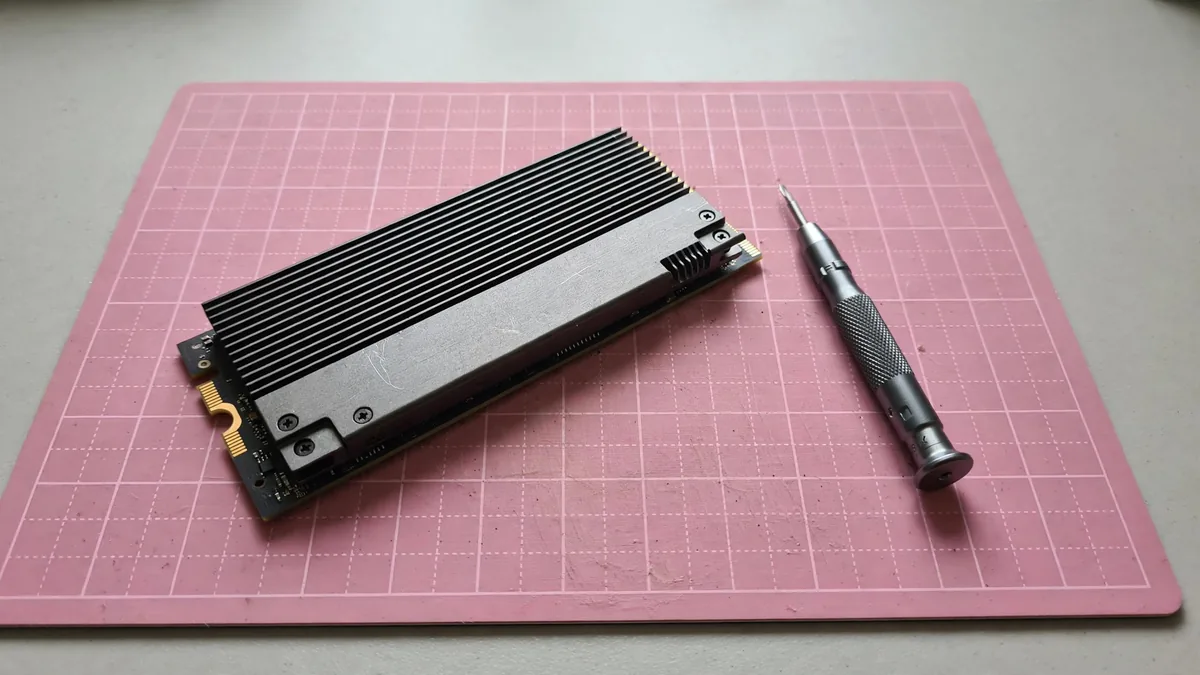
A PS5 SSD upgrade makes sense when you keep moving the same games out of the way to install updates or start something new. Before opening the console, check what is taking up the room. A library full of older PS4 games can be shifted to compatible USB storage and played from there. If you want several PS5 games ready to launch at once, an internal expansion drive serves that purpose.
Open the storage screen and note which games your household plays in a normal week. That short list is a better basis for a capacity decision than the number of games in your account.
Start with a drive that fits with its cooling fitted
Use PlayStation's official M.2 installation guide to check the required interface, supported dimensions, capacity and recommended speed. The fact that a drive is sold as M.2 describes its shape and connector family without establishing compatibility. For example, the guide excludes M.2 SATA drives. Compare the manufacturer's exact part number with the requirements, especially if two boxes in the shop share a product name.
PlayStation requires effective cooling on the expansion drive. A model sold with a built-in heatsink can simplify the purchase if its full assembly fits. For a bare drive, verify the dimensions with the cooling hardware attached. Do not stack an extra heatsink on a drive that already has one. If the cover cannot go back on without pressure, stop and compare the assembly with the dimensions in the guide.
At a Lahore counter, ask to see the actual part number on the package. Compare today's price for that version, including cooling, with the other PlayStation SSD options. Confirm who handles a faulty drive and keep the purchase record. A laptop SSD listing with the same headline capacity may describe a different item entirely.
Set aside time for installation and formatting
Update the PS5 system software first. Find the installation instructions for your exact PS5 model. The cover and how it comes off depend on the console version, so follow the illustration instead of guessing where to apply force. Put the machine on a stable, clear surface where a screw won't disappear. If power at home is unreliable, choose a time when you can finish setup without interruption.
- Turn the console off fully, unplug the cables and let it cool. Follow PlayStation's guidance on discharging static before touching the inside.
- Remove the correct outer cover and open the expansion bay as shown in the official instructions. Move the spacer to the position that matches the drive's length.
- Hold the drive by its edges. Line up the notch, insert the drive into the connector and secure it against the spacer. If it will not sit properly, check the alignment instead of forcing it.
- Put the bay cover and console cover back before reconnecting the cables and starting the PS5. Follow the formatting screen. If you are reusing a drive, save anything you need from it elsewhere before you start because the console formats the whole drive.
Look for the new storage under Settings. Move a game you already know runs well, then launch it from the added storage. If the drive isn't detected or a game fails repeatedly after moving, check the official troubleshooting guidance and verify the model and installation before buying anything else.
Give your active games the fastest route back to play
The built-in console storage and the compatible M.2 expansion can both hold games you launch directly. Decide where you want new installs to go in the storage settings. For example, a family might leave two games everyone plays on the built-in drive and direct new downloads to the expansion until there is a reason to organise the library differently.
With compatible USB extended storage, you can play supported PS4 games directly from the external drive. You can also store PS5 game installations there, but you must copy them back to console or M.2 storage to launch them. This can be useful when your internet connection is busy and you want to avoid downloading a large game again. See PlayStation's USB storage guidance.
Game installations and save files are different. An external archive of installed games doesn't replace a backup plan for your progress. Check which data is being moved in the storage menu before deleting anything. If another family member uses the same console, check with them before clearing their titles or clips.
Match the upgrade to the space you actually need
Check the installed size of the games you rotate between and leave room for patches and temporary files. If you mainly play one title at a time and can archive the rest, move a few games first and see whether the problem returns. If several large PS5 titles need to stay playable, choose an expansion with enough room for them together.
If you are buying the console at the same time, compare the PS5 selection and read the PS5 buying guide. Ask for the console and drive to be quoted separately so you can see how much of the setup cost comes from the extra storage.
Frequently asked questions
Can I put a spare laptop M.2 drive straight into my PS5?
Check the exact drive's interface, performance, dimensions and cooling against PlayStation's guide first. Only proceed if the complete assembly meets the requirements.
Will the console format my used SSD without leaving any of my files?
The PS5 formats the whole drive. Copy any files you need to another device before fitting it and following the console prompts.
Can I leave a PS5 game on USB and play it directly?
Use USB extended storage to archive the installation. Move it back to the built-in or compatible M.2 storage when you want to play.
Business: MacVault
Price Range: Expected price ranges confirmed before purchase
Phone: +92 339 4004289
Description: Browse iPhones, MacBooks, iPads, Apple Watch, AirPods, and PS5 products from MacVault in Lahore with clear condition, warranty, and stock details.
+92 339 4004289 <contact@macvault.store>