
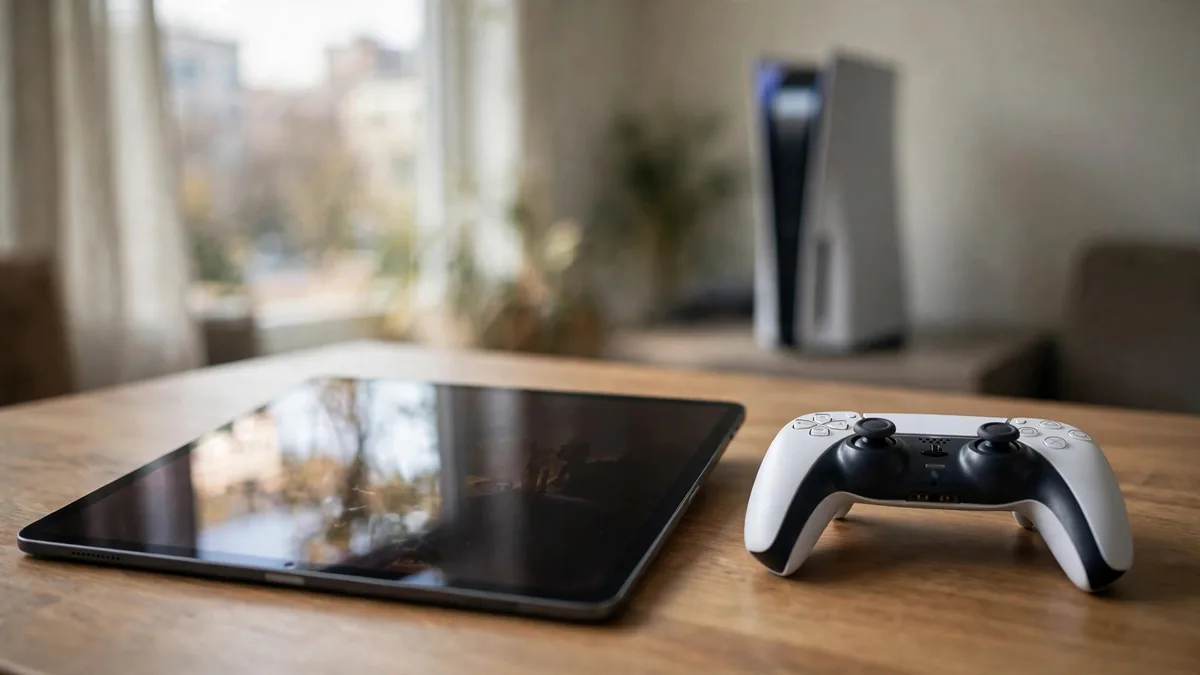
PS5 Remote Play on iPhone lets you stream games from the console at home to the phone or iPad you already carry, and getting PS5 Remote Play iPhone sessions running takes about ten minutes of setup. The PS5 does all the processing, and your Apple device shows the picture and sends your button presses back. It costs nothing beyond the free app, which is why students moving to hostels often try it before buying anything new.
The catch is that Remote Play depends on the internet at both ends, and the home end matters most. This guide covers setting up the app, pairing a DualSense controller, the connection it needs, and the Pakistani problems that cut sessions short.
What you need before you start
- A PS5 with the latest system software.
- An iPhone or iPad running a supported iOS or iPadOS version. Check the requirement listed on the PS Remote Play page in the App Store.
- The PS Remote Play app, free from the App Store.
- The same PlayStation Network account on the console and the app.
- A DualSense controller, or you can use the on-screen touch controls.
- A reliable home internet connection, ideally with the PS5 connected to the router by a LAN cable.
Sony's Remote Play page lists the current requirements and recommended speeds.
Setting up the console
Do this once while you are at home with the PS5:
- Go to Settings, System, Remote Play and turn on Enable Remote Play.
- Go to Settings, System, Power Saving, Features Available in Rest Mode. Turn on Stay Connected to the Internet and Enable Turning On PS5 from Network.
- Put the PS5 in rest mode rather than switching it off. If it is fully off, the app cannot wake it.
- Open the PS Remote Play app on your iPhone or iPad, sign in, and choose PS5. The app searches for the console and connects.
The first connection is easiest on the same home Wi-Fi. Once it works, you can try connecting from outside the home network.
Pairing a DualSense with iPhone or iPad
Touch controls work for menus and slow games, but anything with aiming or quick reactions is far better with a controller. To pair a DualSense with iPhone or iPad:
- Make sure the controller is not connected to the PS5. Turn the console off or move away from it.
- Hold the PS button and the Create button together until the light bar flashes.
- On the iPhone, open Settings, Bluetooth and tap DualSense Wireless Controller.
The controller now works in the Remote Play app and in many App Store games. To use it on the PS5 again, connect it to the console with a USB cable and press the PS button. Keep in mind that the controller can only be paired to one device at a time without re-pairing, so carry the cable if you switch often. If your controller already drifts or disconnects, check our drift fix guide before relying on it for streaming. Spare controllers are on the PlayStation controllers page.
The connection it really needs: PS5 LAN vs Wi-Fi
The weak point in Remote Play is usually the home connection's upload speed, not download. Your PS5 is sending a video stream out of the house, and many home packages in Pakistan offer much lower upload than download. Sony's guidance is a minimum of around 5Mbps both ways, with about 15Mbps recommended for a smooth picture. Run a speed test on a device at home and look at the upload figure specifically.
On the PS5 LAN vs Wi-Fi question, a cable wins for Remote Play. A wired PS5 gives a steadier stream with fewer drops, especially if the router is in another room or your neighbours' networks crowd the same Wi-Fi channels. If a cable is not possible, place the router close to the console and use the 5GHz band.
At the other end, hostel Wi-Fi is often shared by dozens of people and may block the kind of traffic Remote Play uses. Mobile data can work, but streaming games uses a lot of data and the picture will drop in quality when the signal is weak. Test from the hostel before assuming it will work every evening.
Load-shedding, router reboots and other session killers
Remote Play only works while the PS5 and router at home are powered and online. Common problems in Pakistan:
- Load-shedding. When power cuts, the PS5 drops out of rest mode. When power returns, it stays off and cannot be woken remotely. A UPS that covers the router alone keeps the internet up but does not help if the console loses power. The UPS for PS5 guide explains how to size one for both.
- Router restarts. Some ISPs reboot routers or change your public IP address overnight. The app may need a fresh search to find the console. Ask someone at home to restart the router if the app stops finding the PS5 entirely.
- Updates in rest mode. A large system update can leave the console waiting for a restart. Keep it updated before you leave.
- Someone else using the PS5. If a sibling is playing on the TV, you cannot use Remote Play at the same time from the same console.
Remote Play compared with a PlayStation Portal
Remote Play on an iPhone uses devices you already own, which makes it the cheapest way to try streaming. The phone screen is small and the battery drains quickly with a controller connected and the screen at full brightness. An iPad gives a bigger picture and longer play time. A dedicated handheld is a different purchase decision, covered in our PlayStation Portal guide.
Frequently asked questions
Is PS Remote Play free on iPhone?
Yes. The app is free on the App Store and does not need a PlayStation Plus subscription for Remote Play itself. Some games may need their own online subscription for multiplayer.
Why does Remote Play lag even with fast internet?
The usual cause is low upload speed at home or a PS5 on weak Wi-Fi. Connect the console with a LAN cable and check the upload figure on a speed test, not only the download figure.
Can I use Remote Play if my PS5 is switched off?
No. The console has to be in rest mode with network wake-up enabled. If load-shedding cuts power, it will usually come back off, and someone at home needs to turn it on.
Will my DualSense still work with the PS5 after pairing it to an iPhone?
Yes. Connect it to the PS5 with a USB cable and press the PS button to pair it back. You will need to repeat the iPhone pairing next time you want to use it there.
Next step
Set up Remote Play at home before you leave for the hostel, and test it once from outside your Wi-Fi. If the family still needs a console at home, the PS5 category lists current units with condition notes. If you need a second controller to keep paired to your iPhone, message MacVault on WhatsApp to confirm what is in stock and today's price.
Business: MacVault
Price Range: Expected price ranges confirmed before purchase
Phone: +92 339 4004289
Description: Browse iPhones, MacBooks, iPads, Apple Watch, AirPods, and PS5 products from MacVault in Lahore with clear condition, warranty, and stock details.
+92 339 4004289 <contact@macvault.store>