
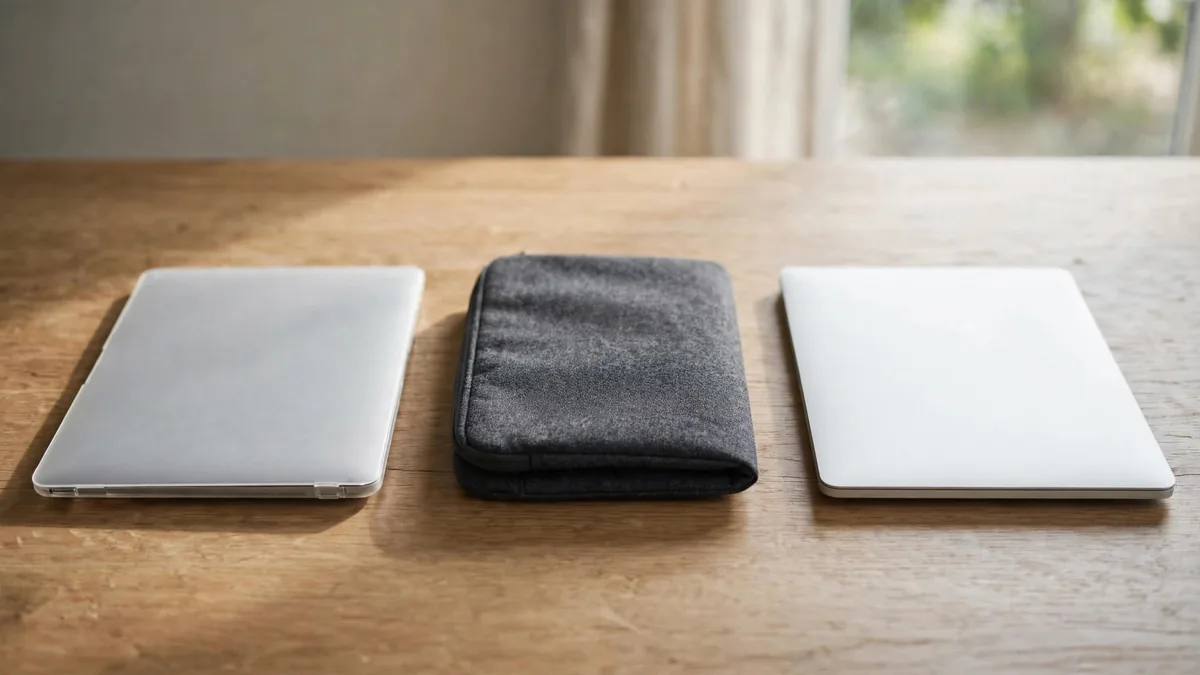
A MacBook case makes sense when you want protection while the laptop is on the desk or being carried between rooms. A sleeve protects it while you're moving and comes off when you work. If your biggest worry is the laptop being pressed against books and a charger on the way to class, a padded bag or sleeve may solve the problem more directly than a shell that stays on all day.
Look at where the marks on your current laptop came from. A scrape from a bag zipper and a chipped corner from knocking a desk call for different choices. Start with the exact MacBook model, then test what the accessory does to your everyday setup.
Pick a sleeve for the trip, not just the laptop
Put the MacBook into the sleeve and check how easily it goes in and out. It should fit without being squeezed and shouldn't slide around excessively. If the sleeve has a zip, check whether the teeth or pull can brush the laptop. A padded flap or a zip set back from the corners can make the difference between a useful sleeve and a source of new marks.
Put the sleeve in the bag with what you normally carry. Keep heavy chargers, keys and bottles in separate compartments. A sleeve adds a layer, but it doesn't stop a full bag from pressing hard on the lid. If you walk or ride with it every day, look at the base and corners of the bag and where the laptop sits when you put the bag down.
Remove the laptop from the sleeve before charging or doing a demanding task. A sleeve is intended for carrying the closed machine, and it can trap heat if you leave the laptop working inside it. If the laptop is already warm after use, give it time to cool before packing it. The MacBook heat guide covers what to check if you notice repeated heat or shutdowns during normal work.
Fit a hard shell without forcing any clips
Ask for the complete model name and year in About This Mac. A 13-inch label may fit several accessories that aren't interchangeable. Check the case against the exact body and port layout. If the seller fits it, watch how it seats at the corners. Stop if it has to be bent or forced around the hinge or if closing the lid feels different afterwards.
Test the ports and charger with the shell on. Check that the feet keep the laptop steady and that the case doesn't obstruct vents or interfere with the way it sits on a stand. For a laptop used on hot afternoons, compare the setup on the surface you actually work on. Apple's Mac temperature guidance recommends a stable surface with good ventilation. Read the case maker's fit and use instructions as well.
A clear shell can collect grit underneath. Remove it as directed from time to time and inspect the contact points. Clean the laptop and case with suitable methods before refitting. If a corner has rubbed or a clip looks damaged, stop and check the fit rather than leaving it there because the outside still looks tidy.
Keep the area between the screen and keyboard clear
Apple's guidance on Mac notebook covers explains that there is little clearance between the screen and top case when the lid is closed. Remove keyboard, camera or palm rest covers before closing the display. An accessory that seems thin while the laptop is open may still put pressure on the screen when it is shut.
Avoid closing the lid over a cloth, loose paper or an accessory left on the keyboard. If you use a keyboard cover while working around dust, give it a place in the bag so removing it becomes part of packing up. Clean the screen according to Apple's instructions. Abrasive material or residue trapped against it can create a separate problem from the marks the accessory was meant to prevent.
Decide how much protection you will actually carry
For daily commuting, compare a sleeve and a bag with a laptop compartment first. For a Mac that moves around a studio or office and rarely goes into a bag, a properly fitted shell may be useful. If you need both, test the laptop inside the shell and sleeve together. The combined size can change whether it fits comfortably. Our MacBook Air size guide has more advice on testing the bag you already own.
Check MacVault's accessories selection and confirm today's price for the exact fit. The Lahore Apple accessories guide covers other things to verify before buying. Ask whether you can check the fit before paying and what happens if the accessory doesn't match the model on the order.
Frequently asked questions
Can I buy any sleeve marked 13-inch?
Compare the sleeve's internal dimensions and test the fit with your exact laptop. Allow for a shell if you plan to leave one attached.
Is a hard case safe to keep on while the Mac is working?
Check the exact fit, vents and stability. If the accessory obstructs airflow or prevents normal use, remove it and follow the manufacturer's guidance.
Should I leave a thin keyboard cover on when I close the lid?
Remove it first. Apple warns that material between the keyboard and display can cause damage because of the small clearance.
Business: MacVault
Price Range: Expected price ranges confirmed before purchase
Phone: +92 339 4004289
Description: Browse iPhones, MacBooks, iPads, Apple Watch, AirPods, and PS5 products from MacVault in Lahore with clear condition, warranty, and stock details.
+92 339 4004289 <contact@macvault.store>