
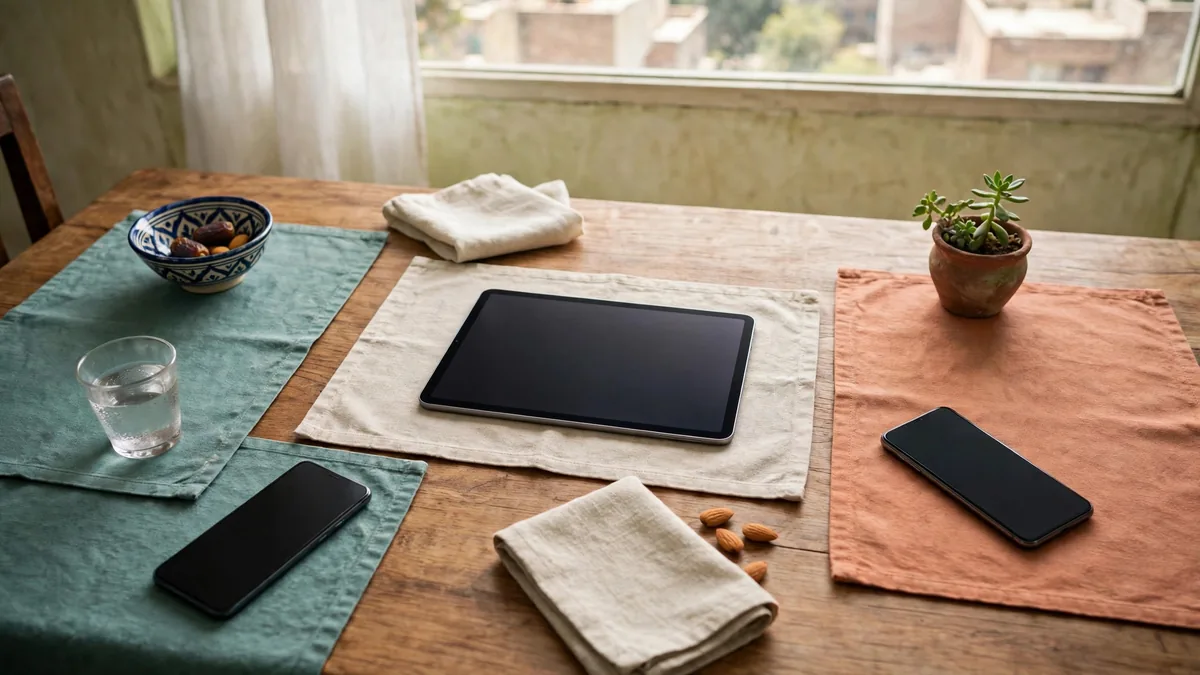
A typical Pakistani household with Apple devices ends up messy. The father's iPhone, the mother's old iPad that the children now use, a teenager's hand-me-down iPhone that is still signed in to an uncle's account, and three separate people each paying for iCloud storage. Every time someone wants an app, a parent's password gets shared around the house.
Apple Family Sharing fixes most of that. One adult organises a group of up to six people, and the group can share iCloud storage, purchases and subscriptions while each person keeps their own Apple Account, photos and messages private. Parents also get proper control over children's devices through Screen Time. This guide walks through setting it up the right way, in the order that avoids the usual problems.
Before you start: one account per person
Family Sharing only works if every member has their own Apple Account. If two people are sharing one account today, fix that first, or their contacts, messages and photos will keep mixing.
- Adults and teenagers can create their own account on their device. Our guide on how to create an Apple ID in Pakistan covers the country, payment and phone number choices.
- Young children should not create an account themselves. The organiser creates a child account for them from inside Family Sharing, which is covered below. Apple sets the age that counts as a child by country, and the setup screen tells you whether the child qualifies.
Write each person's Apple Account email somewhere safe. You will need them when inviting members.
Choose the organiser carefully
The organiser is the adult who creates the family. That role matters more than it seems:
- Purchase Sharing charges the organiser's payment method. If you turn it on, apps, books and other purchases made by family members are billed to the organiser.
- The organiser approves Ask to Buy requests from children, unless they make another adult a parent or guardian in the group.
- The organiser's iCloud+ plan is the one shared. If they upgrade storage, everyone in the family can use it.
Pick the adult who has a working payment method on their Apple Account, who will actually answer purchase requests, and who is not about to change phones or numbers. You can add a second adult as a parent or guardian so approvals do not depend on one person.
Setting up the family
On the organiser's iPhone or iPad:
- Open Settings, tap your name, then tap Family Sharing (on recent iOS versions it may appear as Family near the top of Settings).
- Tap Set Up Your Family and follow the prompts.
- Choose what to share first. You can change every option later, so do not overthink it.
- Tap Invite Others to add adults and teenagers. Send the invitation by Messages, or have them enter their Apple Account password on your device if they are sitting next to you.
- For a young child, choose Create Child Account instead. You enter the child's name and date of birth and confirm you are a parent, and the account is created under your family.
Each invited person must accept on their own device. Until they do, nothing is shared.
Adding grandparents and other adults
Older parents often benefit the most. Once in the family, they can share your iCloud storage instead of seeing "storage full" warnings, and with location sharing in Find My, everyone can see where a phone was last seen if it is lost.
Add them as ordinary adult members. Location sharing is optional per person, so ask first rather than switching it on for everyone.
Sharing iCloud storage
Sharing one iCloud+ plan across the family is usually cheaper than several separate plans. The organiser upgrades their storage, then turns on sharing:
- Go to Settings > Family Sharing > iCloud+ (the exact wording varies by iOS version) and choose to share.
- Each member's data stays private. A teenager cannot see the parents' photos, and parents cannot browse the teenager's files through storage sharing.
- Members already paying for their own plan can switch to the shared one, then cancel theirs to stop paying twice.
Our iCloud storage plans guide explains how to pick the plan size before you share it.
Screen Time for kids
Screen Time is the part most parents set up the family for. Once a child account is in the family, the parent manages it from their own iPhone:
- Downtime blocks apps outside allowed hours, such as after bedtime or during school time.
- App Limits caps daily time in categories like games or social media.
- Content & Privacy Restrictions sets age ratings for apps, films and websites, and stops changes to account settings.
- Communication Limits controls who the child can call or message.
- Ask to Buy sends every app download or purchase to a parent for approval, including free apps.
Set a Screen Time passcode the child does not know, and do not reuse the device passcode. Check the settings again after each major iOS update, because new features sometimes arrive switched off.
Handing down a device inside the family
This is where most households go wrong. Before giving an old iPhone or iPad to a child or parent:
- Back it up, then go to Settings, tap your name, and Sign Out. Enter your Apple Account password when asked. This turns off Find My and Activation Lock for your account.
- Go to Settings > General > Transfer or Reset iPhone > Erase All Content and Settings.
- Let the new user set it up with their own Apple Account. Do not sign them in with yours to save time.
If you skip the sign-out and erase, the new user is stuck with your account, your messages arriving on their device, and an Activation Lock that only your password can clear.
Before selling a device
Leaving a device in the family group does not lock it, but leaving it signed in does. Before selling, sign out of the Apple Account, erase the device, and check it no longer appears in the device list under your name in Settings. Our step-by-step guide to resetting an iPhone before selling goes through each check. If someone in the family is leaving the group for good, remember that purchases shared by other members will stop being available to them.
Frequently asked questions
How many people can join Apple Family Sharing?
Up to six people, including the organiser. Each person keeps their own Apple Account and private data.
Can family members see each other's photos or messages?
No. Sharing iCloud storage shares space, not content. Photos are only shared if someone deliberately uses a Shared Album or a shared photo library.
Can a child leave the family on their own?
Young children cannot simply leave. The organiser can move them to another family if needed. Older members can leave from their own Family Sharing settings.
Do in-app purchases get shared?
Generally no. Apps and many subscriptions can be shared, but in-app purchases such as game currency usually stay with the person who bought them.
Setting up new devices
If the family is adding an iPhone or iPad this season, look through our iPhone and iPad pages and message MacVault on WhatsApp with the model you want. Set up the new device on its owner's own Apple Account from day one, and it joins the family without any cleanup later.
Business: MacVault
Price Range: Expected price ranges confirmed before purchase
Phone: +92 339 4004289
Description: Browse iPhones, MacBooks, iPads, Apple Watch, AirPods, and PS5 products from MacVault in Lahore with clear condition, warranty, and stock details.
+92 339 4004289 <contact@macvault.store>